Step 1: Access Email Accounts in cPanel
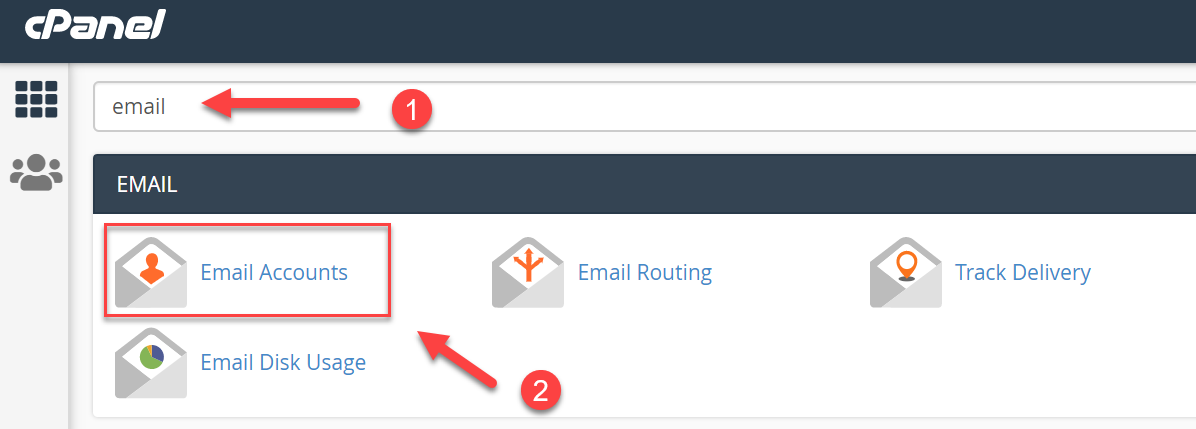
To create a new email account, log in to your cPanel control panel and navigate to the Email Accounts section. You can use the search bar at the top to quickly find "Email Accounts" or scroll down through the dashboard until you see the option.
Step 2: Set Up Your Email Credentials
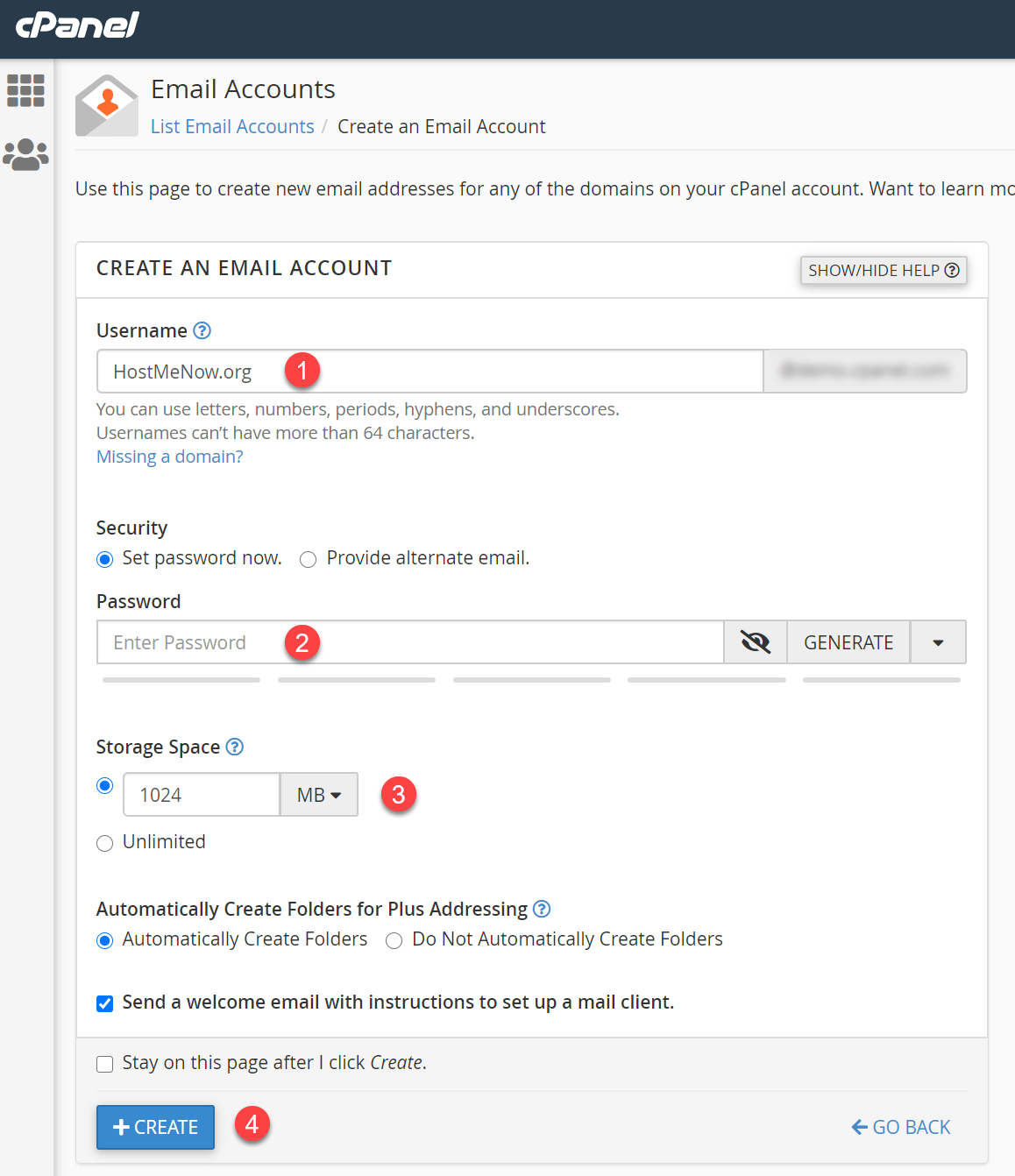
Once you're in the Email Accounts section, enter your desired email address in the username field and create a strong password that includes a mix of letters, numbers, and special characters.
Pro Tip: Use the Password Generator button to create a secure password automatically, then save it in an offline password manager like KeePassXC for safekeeping.
Step 3: Configure Mailbox Quota
The Mailbox Quota determines the total storage capacity for your email account. You can keep the default allocation for standard usage, set a custom limit based on your specific needs, or choose unlimited storage if your hosting plan allows it.
Step 4: Complete the Setup
Review your settings and click the Create Account button to finalize the process. Your new email account is now ready to use!